



Standalone
Everything on the device
Billing and reports on the device, no internet needed Business data and backups on your device Extra devices get menu and settings from the main device with update files
Apps & installation
Explore Windows and Android POS options, plus the Kitchen Display and Waiter apps.
Public download links are not listed yet. Contact us to request an installer and confirm the build you need.
Latest version v1.1.0
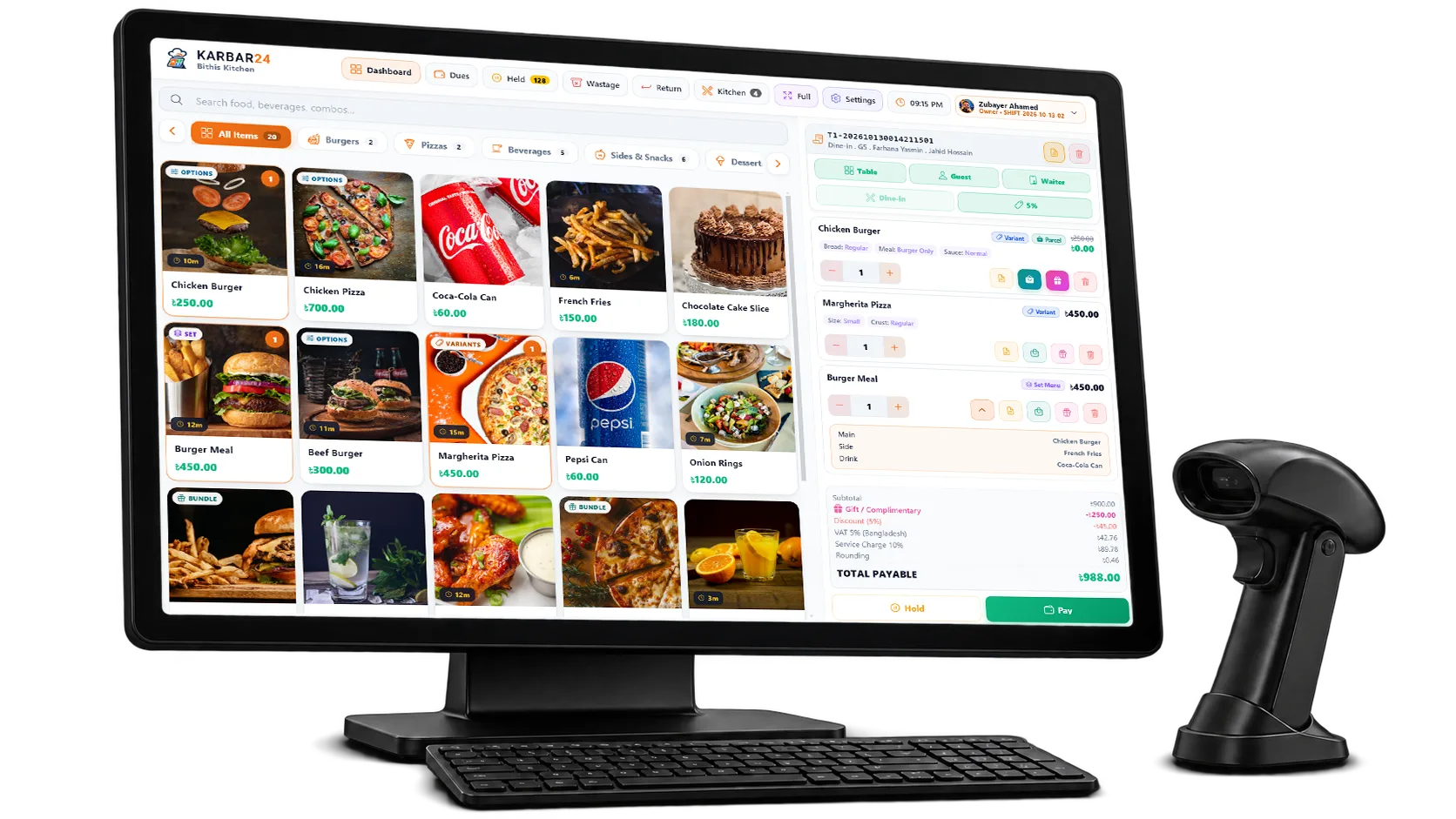
Choose your setup
Both use the same POS app — you choose the mode the first time you open it. Standalone keeps billing, reports and settings on the device. Cloud also sends sales and reports to the cloud, so you can see them from anywhere and manage every terminal from a browser.
Everything on the device
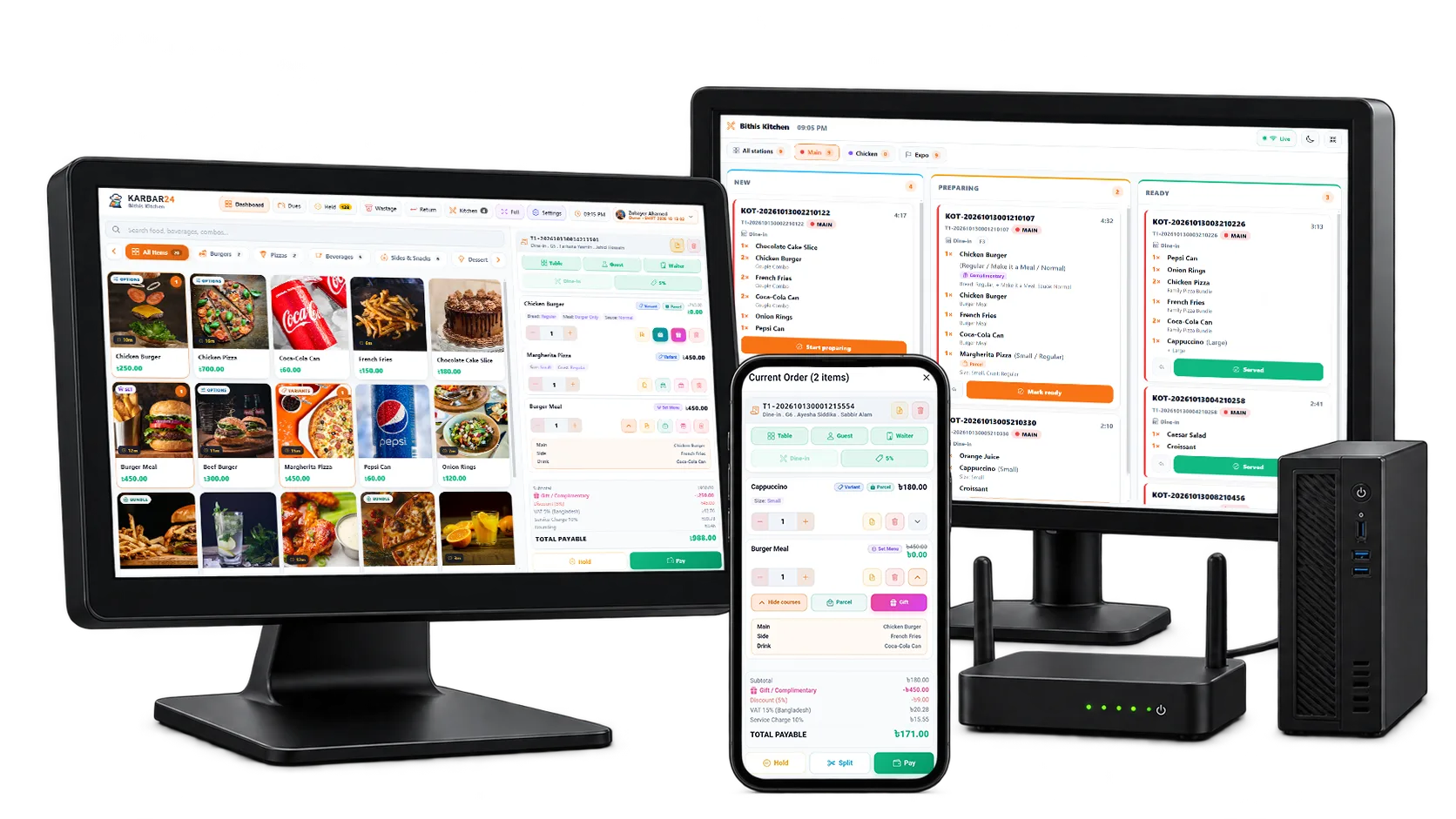
Reports and terminals online · early access
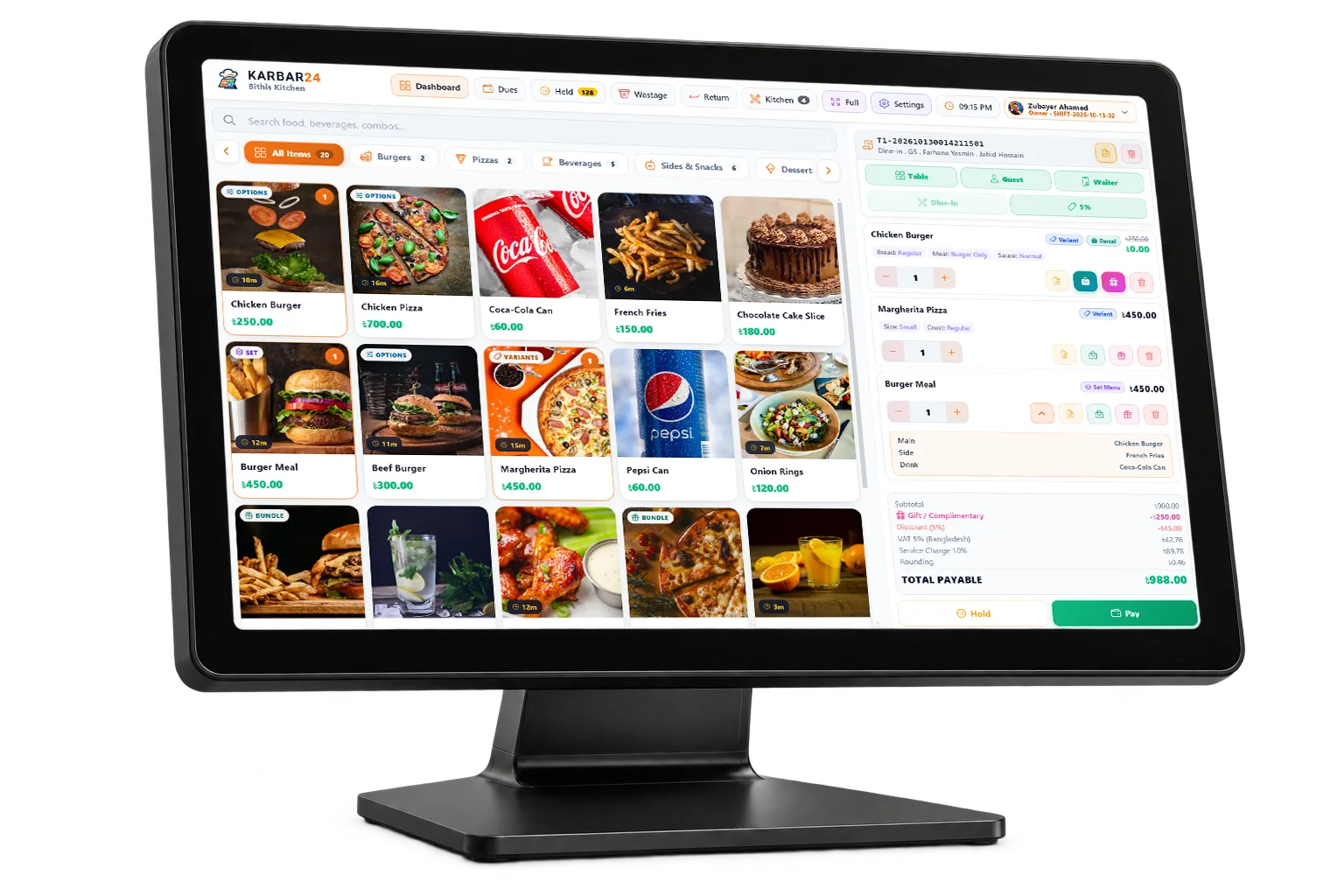
Karbar24 POS
The point-of-sale app for your counter. The Kitchen Display and Waiter apps have their own downloads below.
| Platform | ||
|---|---|---|
| — |
Companion apps
They connect to your POS over the restaurant’s local network.

Add a kitchen screen for order tickets and preparation status. Included on every plan; confirm supported Windows or Android hardware with us.
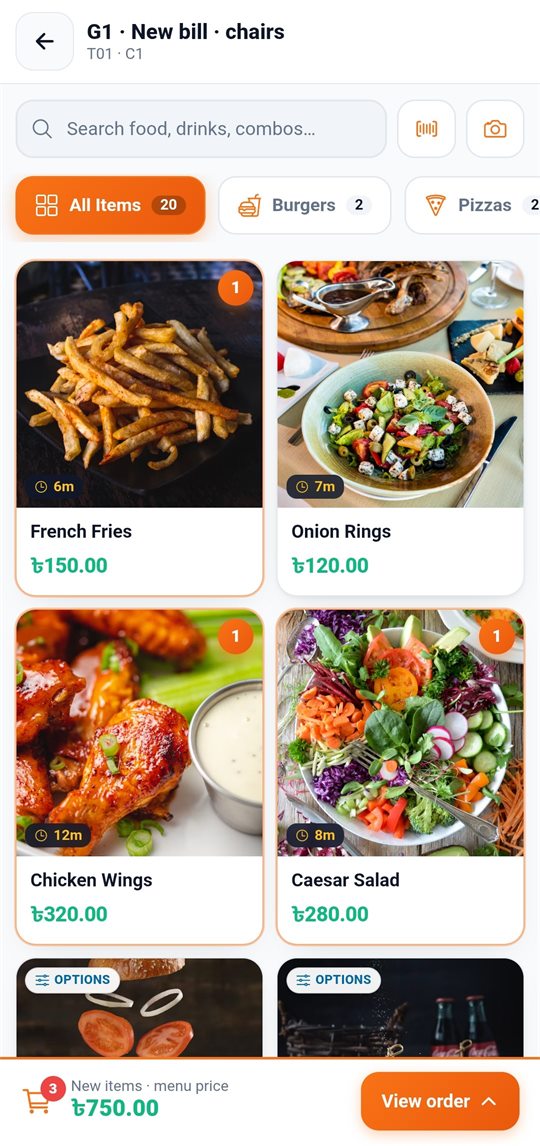
Add Android phones for tableside orders and ready status.
Get started
Release notes
New features, improvements, fixes and security updates for each published release.
New • Backup reminder: the app now reminds you to save a backup. Choose Daily, Weekly or Off on Backup & Restore. • Delete your account and data from the app: My Profile → Privacy & your data. • Problem Report (Help, owner only): save or copy a short report to attach to a support ticket. Nothing is sent by itself. • Privacy policy and terms are linked on the Sign in screen and in My Profile. Changed • New products start with "Needs kitchen preparation" off. Turn it on for items the kitchen makes. • Number Sequences never print the same number twice. • If your data can't be moved to the app's database file, Backup & Restore now shows it, with Try again. • Screen readers now name every icon button. • A faster sales screen and many other fixes.
First release of K24 Kitchen on the Microsoft Store: the kitchen screen for Karbar24 POS — live tickets over your own network, several terminals on one board, stations and expo, large text and big buttons.
Good to know
Internet, builds, checksums and release channels.
Billing, printing and reports work on the device without internet. Kitchen screens and waiter phones only need your local network. Internet is needed for licence checks and downloads — and, on Cloud, to send sales to the cloud and manage terminals remotely.
The same POS installer serves both. Choose Standalone the first time you open it to keep everything on the device, or Cloud to put reports and terminal management online. Cloud is in early access — talk to us before setting it up.
Compare the file’s SHA-256 value with the value supplied for that exact file. On Windows use certutil -hashfile installer.exe SHA256; on macOS or Linux use shasum -a 256 followed by your file name.
Choose Stable for a live counter. Test Beta away from active service before considering it for daily use.
Tell us your device and setup. We'll help you find the appropriate installer.